A place for everything around the code
So far we've worked alone. But GitHub was built for working together, and it has a place for everything around the code: bugs, ideas, to-dos. That place is called Issues.
An issue is a card: a title, a description, and a thread of comments underneath. Found a bug? Open an issue. Got an idea for a feature? Issue. Need to remember to update something? Also an issue.
Every issue has a number
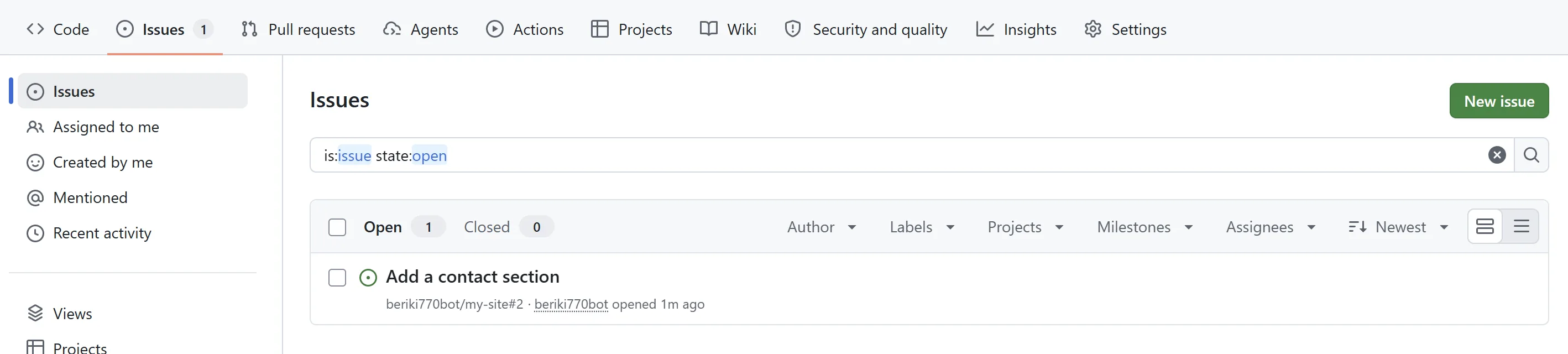
Every issue gets a number, and that number works everywhere on the site. Type a hash sign and a number, say #7, in a commit or a pull request, and GitHub turns it into a link to that issue.
 123
- The Issues tab.
- New issue opens a new card.
- The issue's number: here #2.
Pull requests share the same numbering. In the demo repo the issue is #2 because pull request #1 came first.
“Fixes #2” closes the issue for you
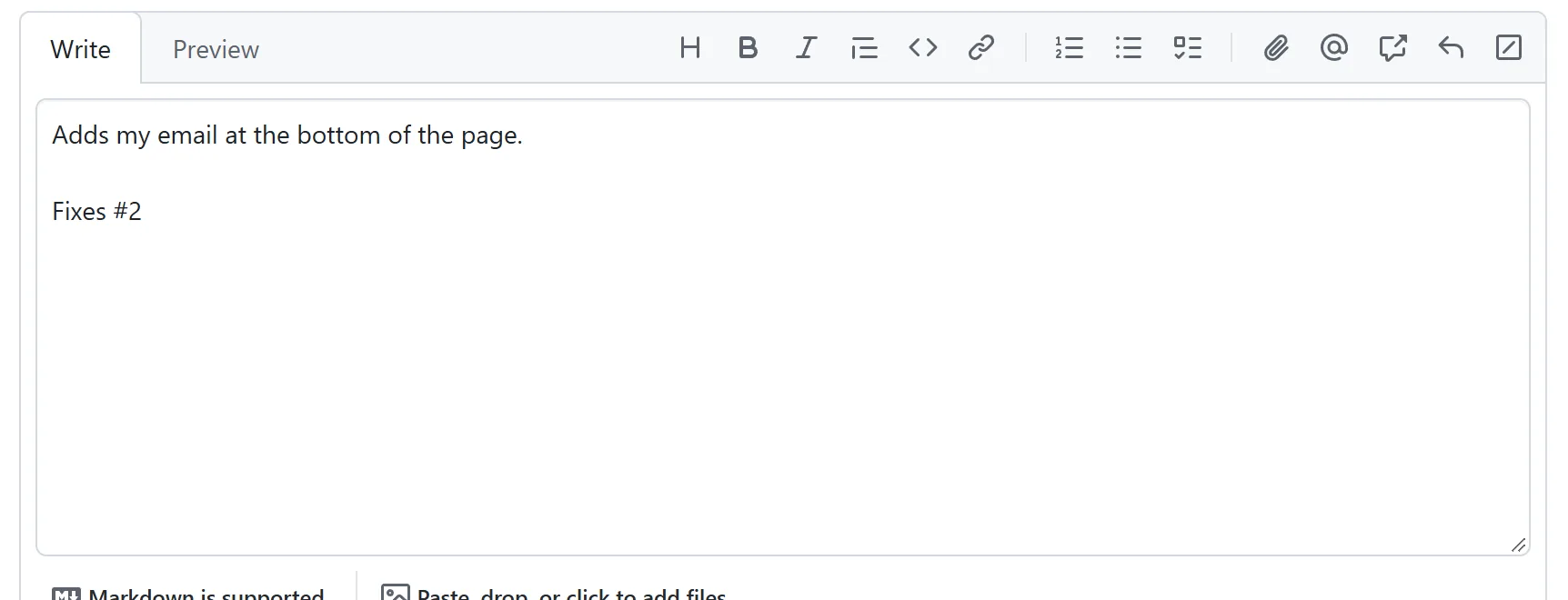
In a pull request description, write the word Fixes, then a hash and the issue number. The moment you merge, the issue closes by itself.
 1
- Fixes #2 in the description links the pull request to issue #2.
Who handles it, and what kind it is
You can assign an issue to a person, so it's clear who's handling it. And you can add labels like “bug” or “enhancement” to sort them.
The same issues as a task board
Want to see it all as a board with columns for to do, in progress and done? A project under the Projects tab lays your issues out like that.
 1
- Issue #2 as a card, in In Progress while its pull request is open.
Bring other people in
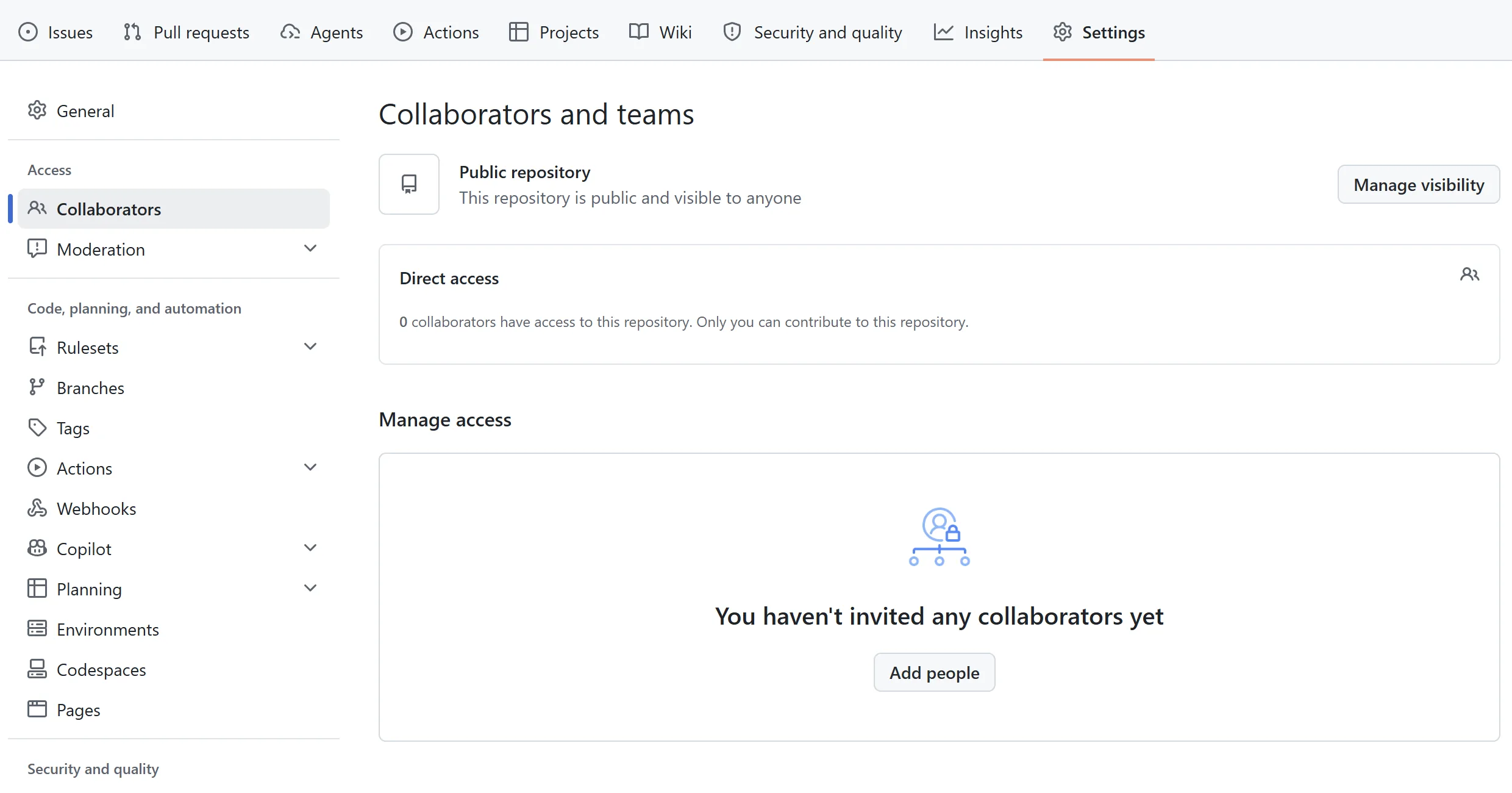
- Open the repo's Settings.
- In the menu on the left, click Collaborators.
- Click Add people and invite someone by username or email.
 123
- Settings
- Collaborators
- Add people
Once they accept, they can commit and create branches just like you.
The one rule for teams
Nobody works straight on main. Everyone works on their own branch, and every change comes in through a pull request. That way someone else always sees a change before it goes in.
Open an issue
- Open the Issues tab and click the green New issue button.
- Write a short title and a description: what happened, and what you expected to happen.
- Click the green button at the bottom to create it.
Read more
- About issues – GitHub Docs
- Creating an issue – GitHub Docs
- Linking a pull request to an issue – the Fixes keyword, GitHub Docs
- About Projects – GitHub Docs
- Inviting collaborators – GitHub Docs
- Issue #2 in the demo repo – closed by pull request #3