Someone else's project
You've found someone else's project on GitHub and want to change something in it. But you don't have permission to write to their repo. That's a good thing, or anyone could change anything for everyone.
A fork is your own copy
A fork is a copy of someone else's repo in your own account, with its whole history. You own that copy and can do whatever you want with it.
Made something good in your copy and want to offer it to the original project? Open a pull request from your fork to the original repo. That's how people contribute to open source: fork, change, pull request.
Fork in one click
- On the repo page, at the top right, click Fork.
 1
- Fork, top right on the repo page.
- The owner is already your account. Confirm with Create fork, and a few seconds later you have your own copy.
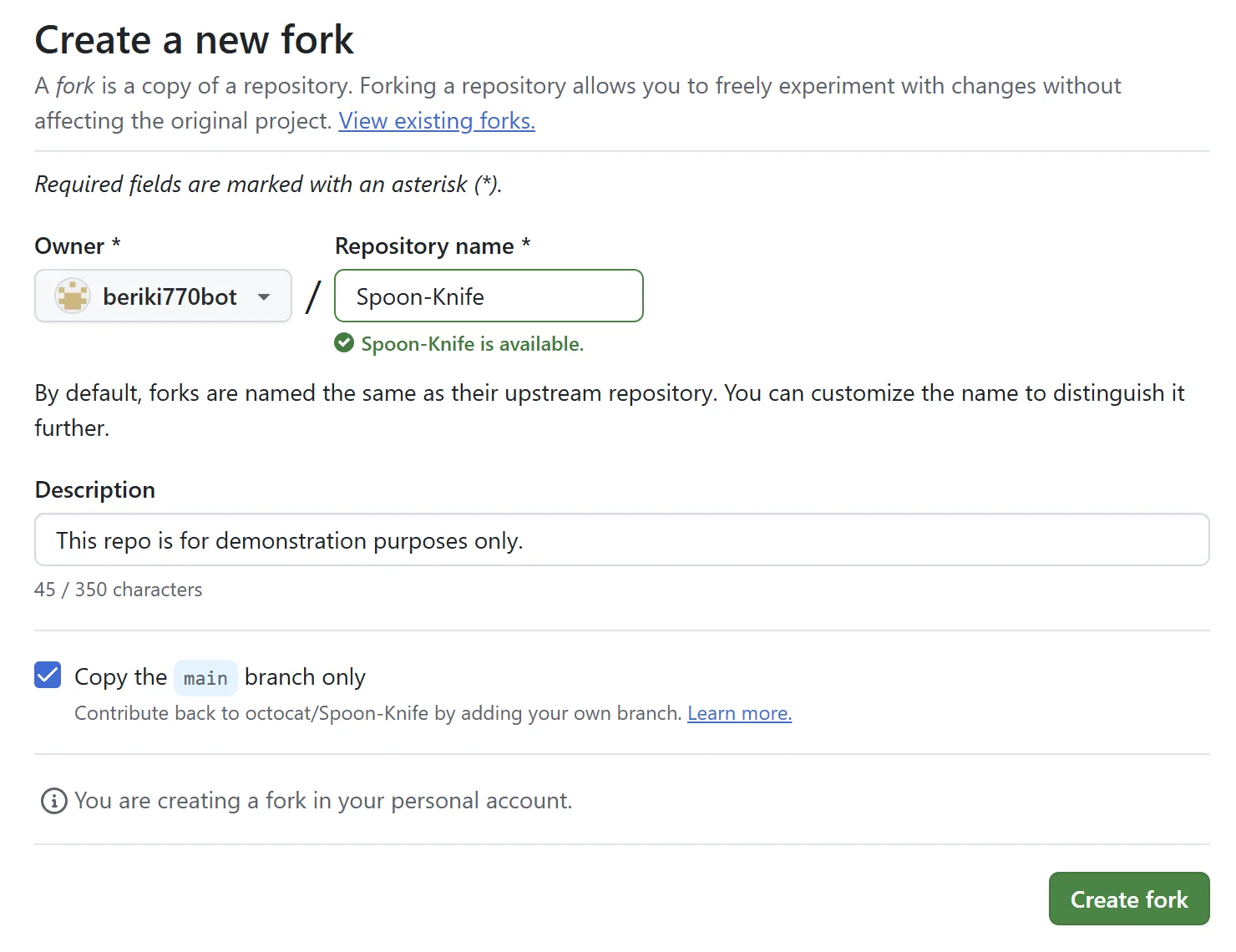 1
- Click Create fork.
Spoon-Knife is GitHub's official practice repo for forking, so it's a safe one to try.
Your computer: cloning
So far we've only worked on the website. That's fine for small edits, but real projects are edited with programs on your own machine.
Downloading a repo to your computer, with all its history, is called cloning. The folder you get knows where it came from, so you can send changes to it and get changes from it.
GitHub Desktop: no terminal needed
GitHub makes a free app called GitHub Desktop. Download it from desktop.github.com and sign in with your account.
- On the repo page, click the green Code button.
- Click Open with GitHub Desktop.
- The app opens and asks where to save the folder. Click Clone.
 12
- The green Code button.
- Open with GitHub Desktop
Edit, commit, push
Now you have a normal folder on your computer. Open a file, edit it, save it, like you always do.
Go back to GitHub Desktop. On the left it already shows what changed, in red and green. At the bottom, write a message and click Commit. It's the same commit as in episode 2, just from your computer.
That commit is still only on your computer. To get it to GitHub, click Push origin. Push means send it up.
And the other way round: pull
Someone changed something on the website? Click Fetch origin, then Pull origin. Pull means bring it down. Now you also know why it's called a pull request.
Read more
- Fork a repo – GitHub Docs
- Cloning a repository – GitHub Docs
- GitHub Desktop – free download
- Cloning with GitHub Desktop – GitHub Docs
- Pushing with GitHub Desktop – GitHub Docs
- octocat/Spoon-Knife – the practice repo for forking