Stop for a moment before you merge
You have a branch with changes. You could merge it into main straight away. But on a team, and even on your own, it's worth stopping for a moment first.
A pull request is a request
With a pull request you're saying: “I made changes on this branch. Take a look, and if they're good, put them into main.”
The name is a bit confusing. You're asking whoever looks after the project to pull your changes in. GitLab, a competing site, calls the same thing a merge request, which is clearer.
What a pull request shows
A pull request shows exactly what will change: every file, every line, in red and green. Like a commit, but for the whole branch at once.
The review
Whoever checks it can comment on one specific line: “Something's missing here.” “This could be simpler.” That check is called a review.
You fix things based on the comments and make another commit on the same branch. It joins the pull request by itself, so there's no need to open a new one.
Merge, and the conversation stays
When everyone's happy, you merge. The branch goes into main and the pull request closes. The whole conversation is kept, so a year from now you can still see why the change was made.
Open a pull request
- After you commit to a branch, GitHub usually shows a yellow bar at the top with a Compare & pull request button. Click it.
- No yellow bar? Open the Pull requests tab, click New pull request, pick your branch and compare it with main.
 12
- compare: is your branch, base: is main.
- Click Create pull request.
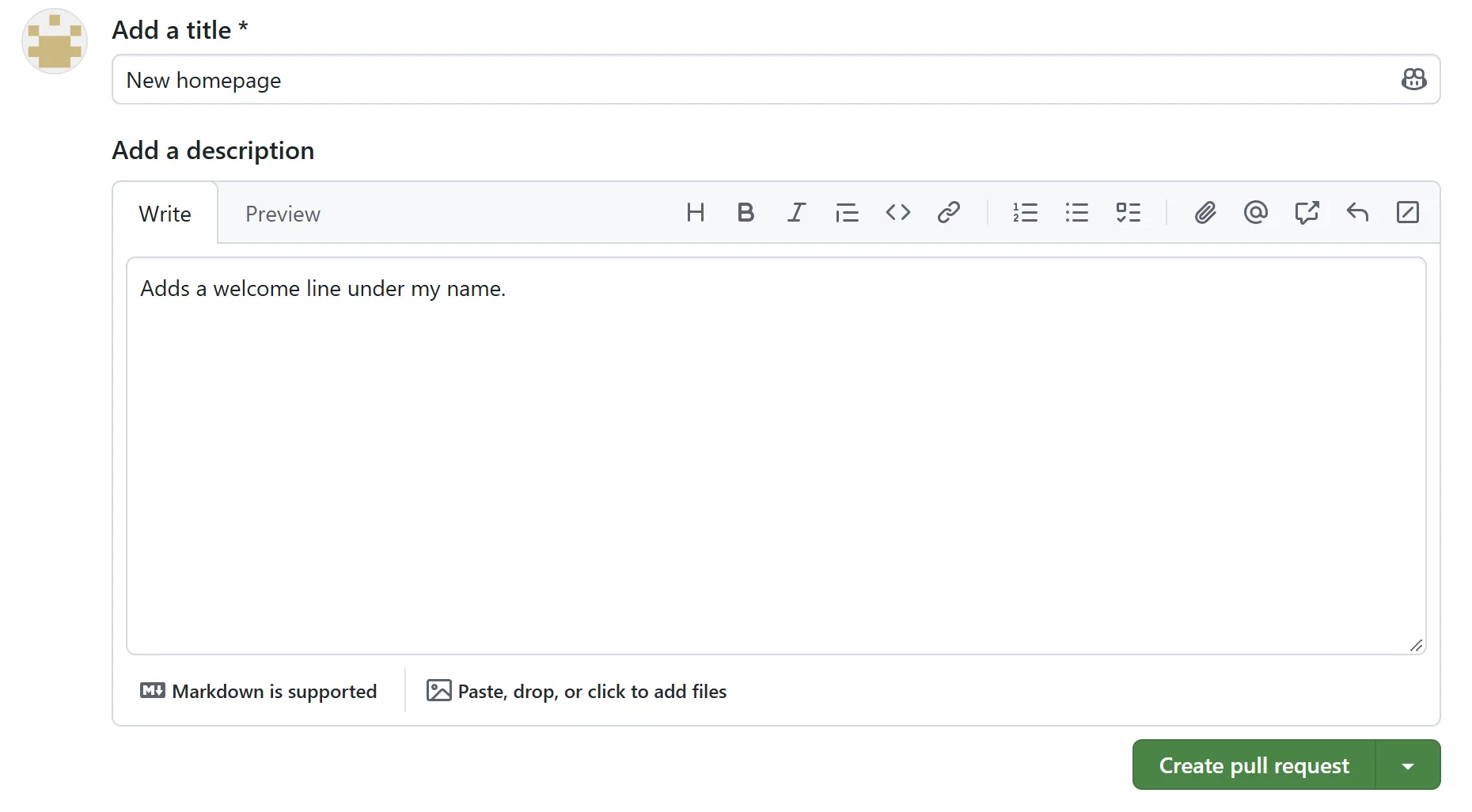
- Give the pull request a title and a few lines: what you changed and why. Then click Create pull request.
 12
- A short title.
- Click Create pull request.
Comment on a line
Open the Files changed tab. This is what the reviewer sees. Hover over a line, click the plus that appears next to it, and leave a comment.
Merge it
- Go back to the first tab, Conversation, and click Merge pull request.
- Then click Confirm merge. It appears in the same place.
 1
- Merge pull request, then Confirm merge.
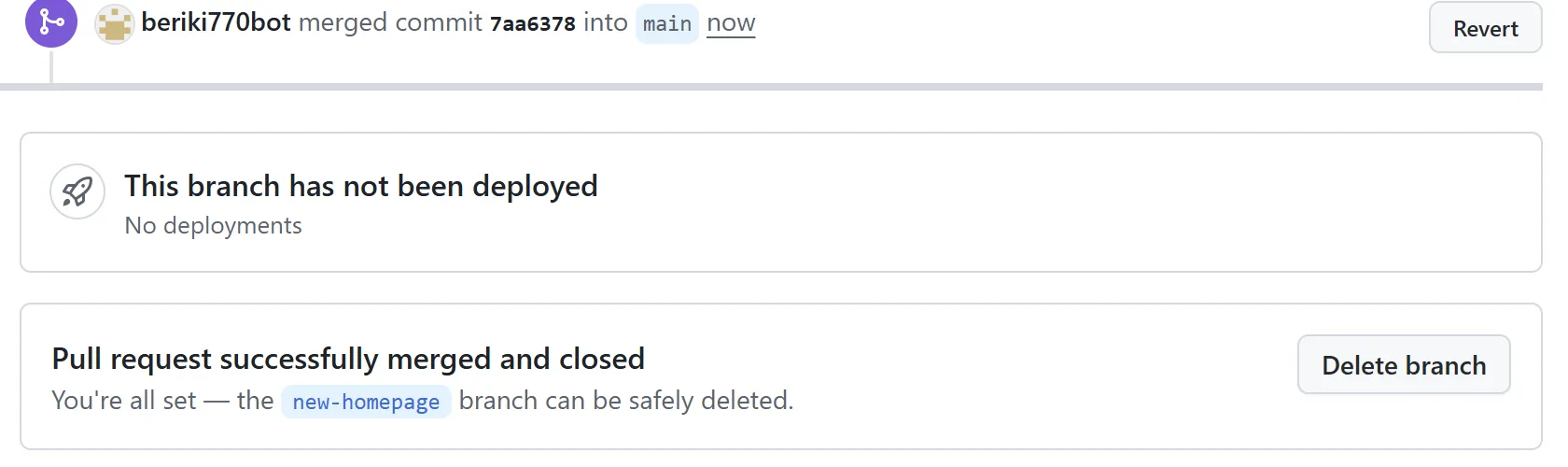
GitHub then offers to delete the branch. It has done its job.
 1
- Delete branch: the branch is merged, you can let it go.
Go back to the repo page. Your change is now on main.
Read more
- About pull requests – GitHub Docs
- Creating a pull request – GitHub Docs
- Commenting on a pull request – GitHub Docs
- Merging a pull request – GitHub Docs
- Pull request #1 in the demo repo – the one in the screenshots