A folder has no memory
You have a folder on your computer with a project in it: a website, a book, some code. Now try to answer three questions. What did it look like a week ago? What did you change yesterday? And if two people work on it, who changed what?
A normal folder can't tell you. It holds one version, the latest. Overwrite something and it's gone. That's why so many of us end up with files called “site-final”, “site-final-2” and “site-final-REALLY”. It works until the day it doesn't.
Git gives the folder a memory
Git is a program that does exactly that. Every time you tell it “save”, it takes a snapshot of the whole project and keeps it. You can go back to any snapshot whenever you like.
Linus Torvalds wrote Git in 2005 to manage the code of Linux, which thousands of people work on at the same time. Today almost every software team uses it.
GitHub is where that memory lives online
GitHub is a website. It takes your folder with its memory and puts it online, so it no longer depends on one computer and other people can see it and work on it with you.
The short version: Git is the memory, GitHub is its home on the internet. There are other sites like it, but GitHub is the biggest. It has belonged to Microsoft since 2018.
Repository, or just “repo”
A project folder together with all its history is called a repository. Almost everyone says “repo”. One repo is one project.
What a repo page shows
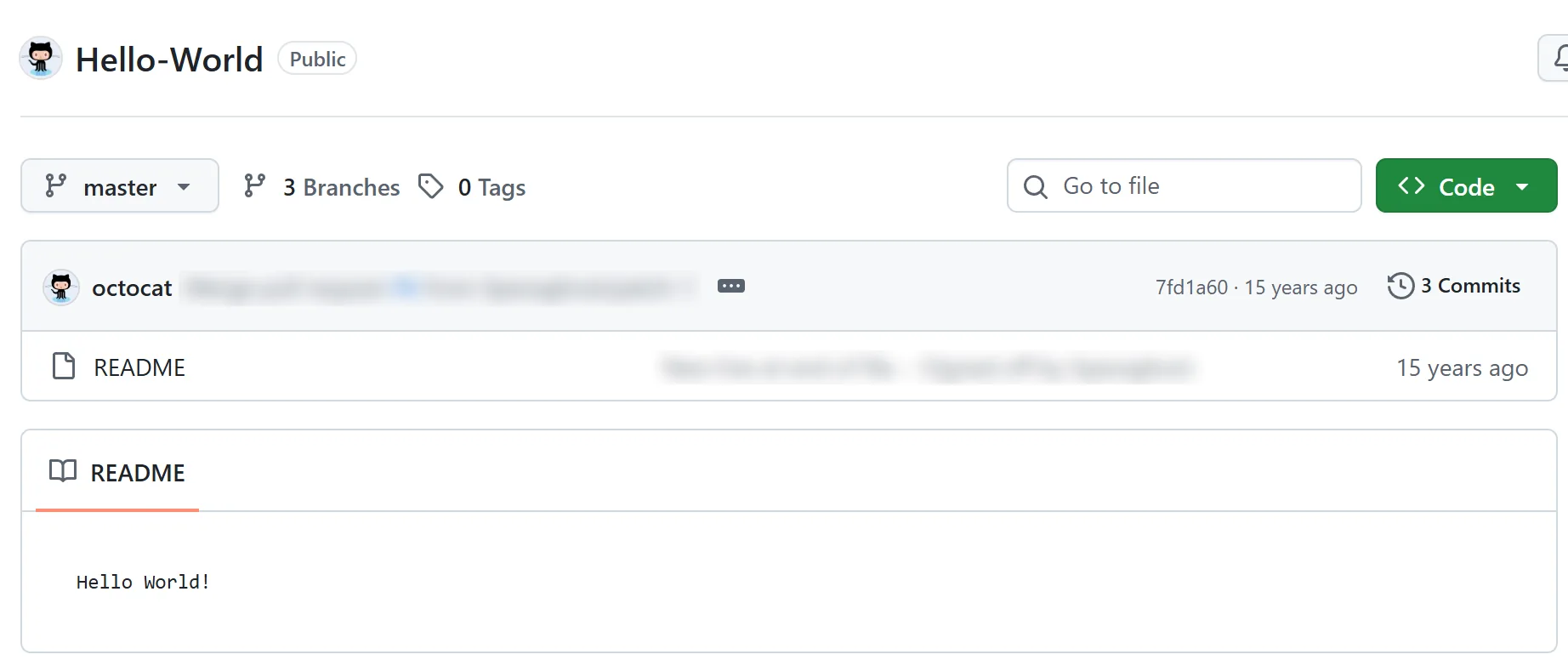
At the top of a repo page you see its name and who owns it. In the middle is the list of files, just like a folder on your computer. Next to it there's a number with a small clock: how many snapshots have been saved so far. Those snapshots are the next episode.
Under the files there's usually a file called README. It's the project's front page: what it does and how to use it. GitHub shows it automatically, so it's the first thing every visitor reads.
 12
- 3 Commits: how many snapshots this repo has so far.
- README: the project's front page, shown under the files.
This example is octocat/Hello-World, GitHub's own public demo repo. Other people's names are blurred.
Public or private
A repo can be public, so anyone can see it, or private, so only you and the people you invite can. Both are free.
Create your first repo
- Go to github.com and create a free account.
- Click the + at the top right and choose New repository. (The video uses the green New button. The + menu at the top right does the same and is there on every page.)
 12
- Click the + at the top right.
- Choose New repository.
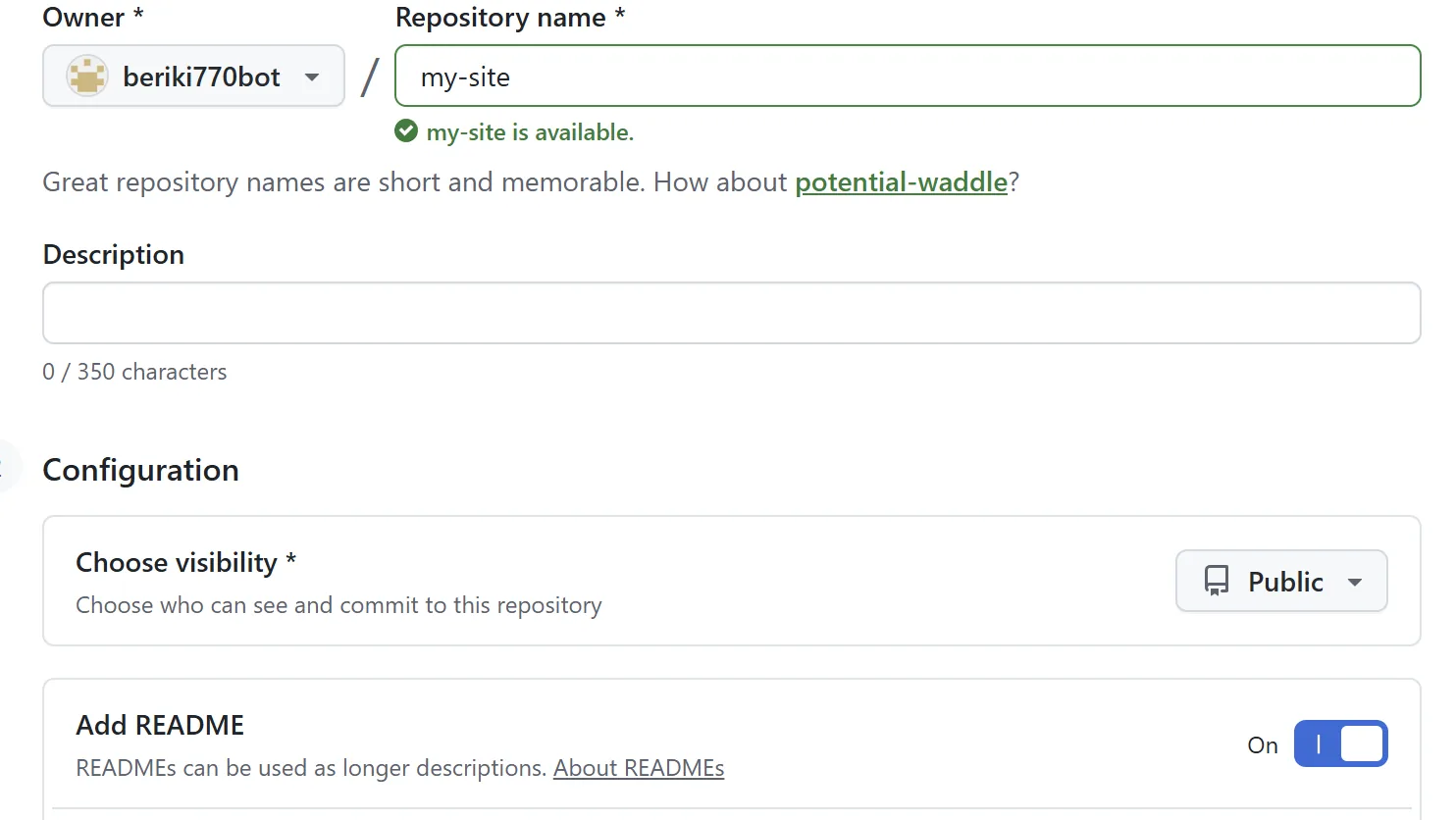
- Give your repo a name, for example my-site.
- Switch on Add README. GitHub used to show this as a tick box called “Add a README file”; today it's a switch that says On.
 12
- Type the name of your repo.
- Switch Add README to On.
- Click the green Create repository button at the bottom.
 1
- Click Create repository. That's it, your first repo exists.
Read more
- Creating an account on GitHub – GitHub Docs
- What is GitHub? – GitHub Docs
- Creating a new repository – GitHub Docs
- git-scm.com – the home page of Git itself