A commit is one snapshot
Last episode we said Git takes snapshots of your project. One of those snapshots is called a commit. It saves the whole project at one moment: every file, exactly as it was when you said “save”.
Who, when, and one sentence
Every commit records three things: who made it, when, and a short sentence about what changed. That sentence is the commit message, and it matters more than you'd think.
In six months you won't remember why you changed a line. The message will. “Fix” is a bad message. “Contact form button didn't send emails, fixed” is a good one.
A line of snapshots
Commits line up one after another, and each one knows which commit came before it. That's how a history gets built: a line of snapshots from the first to the latest.
Because every snapshot is kept, you can always see what changed between two of them. GitHub shows it in colour: red for what was removed, green for what was added.
Make a commit on the website
- Open the repo you created in episode 1 and click the README file.
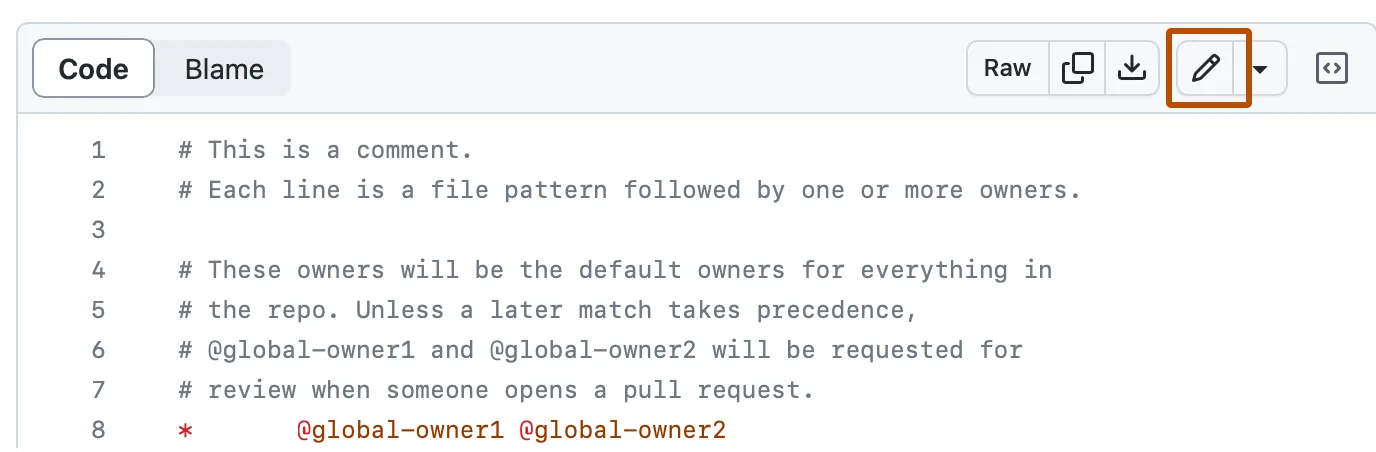
- Click the pencil icon at the top right of the file to edit it.
 1
- The pencil: edit this file right in the browser.
This picture comes from GitHub Docs and shows a different file. The pencil sits in the same place on your README.
- Write something, for example one line about what this project is.
- Click the green Commit changes… button. It stays pale until you've changed something.
 1
- Commit changes… opens a small window for your message.
- In the window, write your message in the first line: one sentence about what you did. Then click Commit changes again.
Look at the history
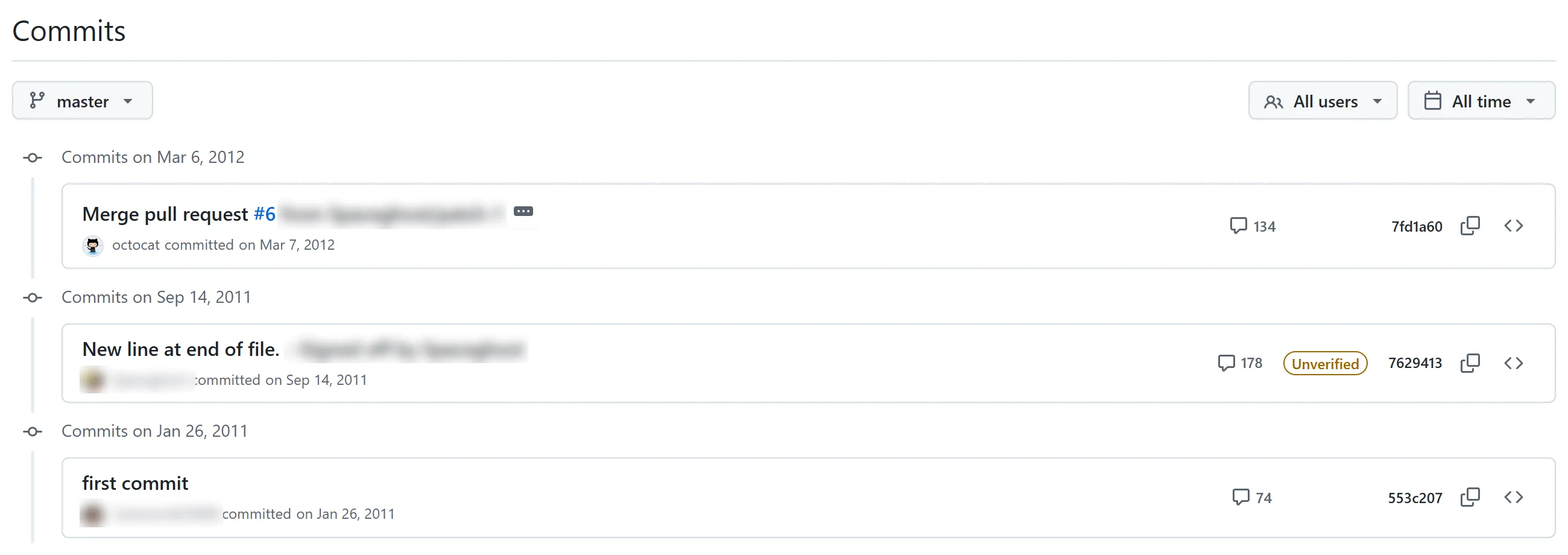
Go back to the repo page. The number with the clock next to the file list has gone up by one. Click it and you see the whole history: every commit, who made it, when, and with what message.
 1
- Each line is one commit, with its message. Here the very first one: “first commit”.
Click one commit and you see exactly what it changed, in red and green.
 12
- Red: the line as it was before.
- Green: the line as it is now.
Both pictures show octocat/Hello-World, GitHub's public demo repo; other people's names are blurred.
Nothing got overwritten
Notice what didn't happen: you didn't overwrite anything. The old version is still there, and it always will be.
Read more
- Editing files – GitHub Docs
- About commits – GitHub Docs
- The demo repo's history – the course repo my-site